Changelog
What’s new
New features and fixes in PDF Measure, newest first.
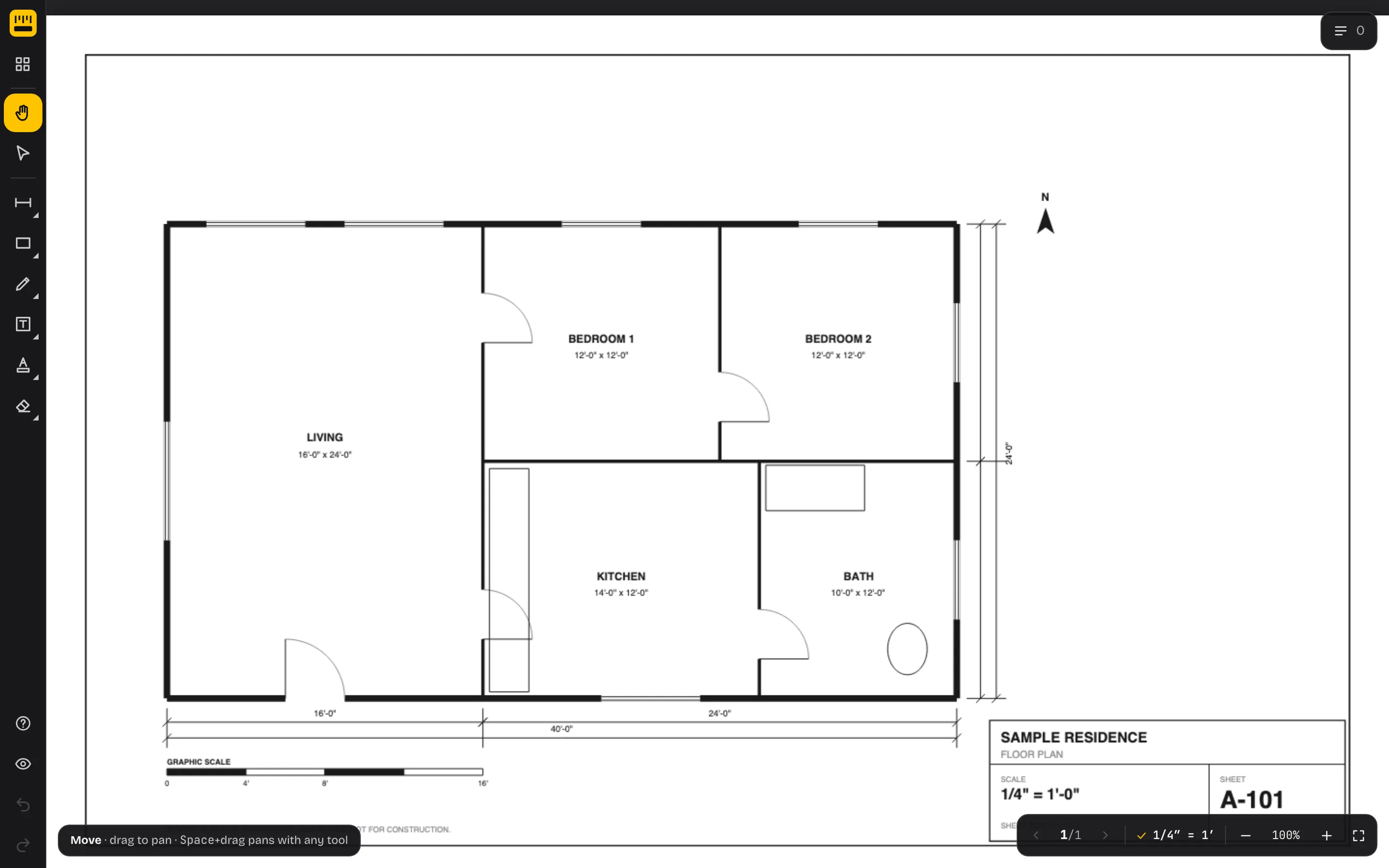
Rotate PDF pages
Sheet scanned sideways? Rotate it with the button at the bottom right, or Shift+R. Your markup and measurements rotate with it.
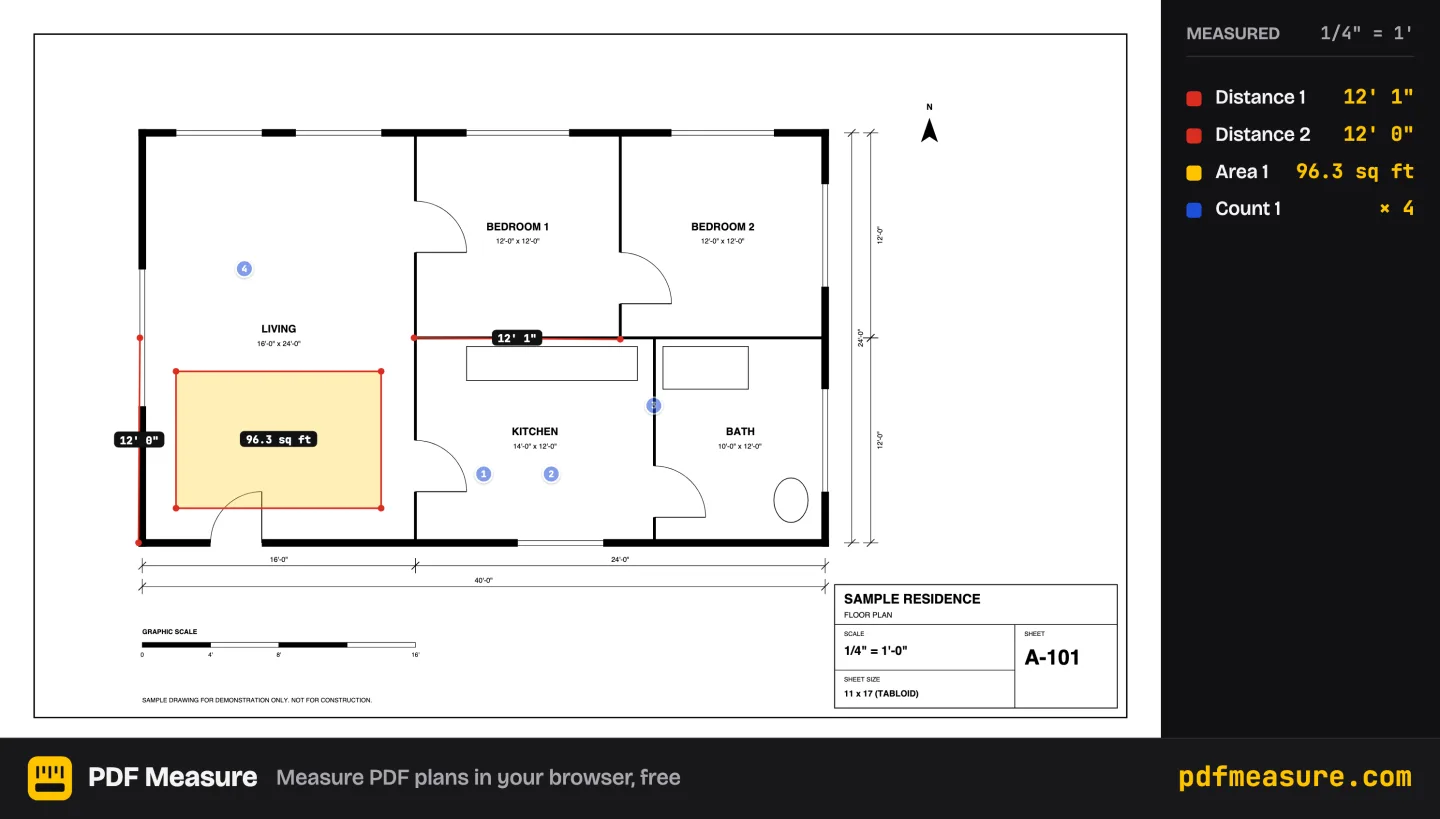
Share a picture of your measurements
Share turns what’s on screen into a picture with a list of your measurements, ready to text or email.
Drag the corners to frame it. On a phone, Share opens the share sheet; on a computer, copy or download it.
It’s made on your device; nothing is uploaded.
Better controls on phones and tablets
Measure with one finger and move the plan with two: a magnifier shows exactly where each point lands, and it snaps to the drawing.
Hold your finger down and a magnifier shows what’s under it, with a crosshair where the point will land. Points snap to the drawing’s corners and lines, as with a mouse.
A strip at the bottom says what the next tap does, with Undo point and Done buttons. Missed? Drag the point you just placed, or tap with two fingers to take it back.
With a tool picked, two fingers pan and pinch to zoom; the Move tool still pans with one.
Snap to the drawing
Measurements snap to the drawing’s corners, crossings, midpoints and lines, so points land exactly where they should.
A yellow marker shows where the click will land before you click. Lettering and hatching are left out, so labels don’t get in the way.
Works with Distance, Area, Perimeter, Angle, Calibrate and Length run. Hold Shift to keep a line straight: it still snaps along it.
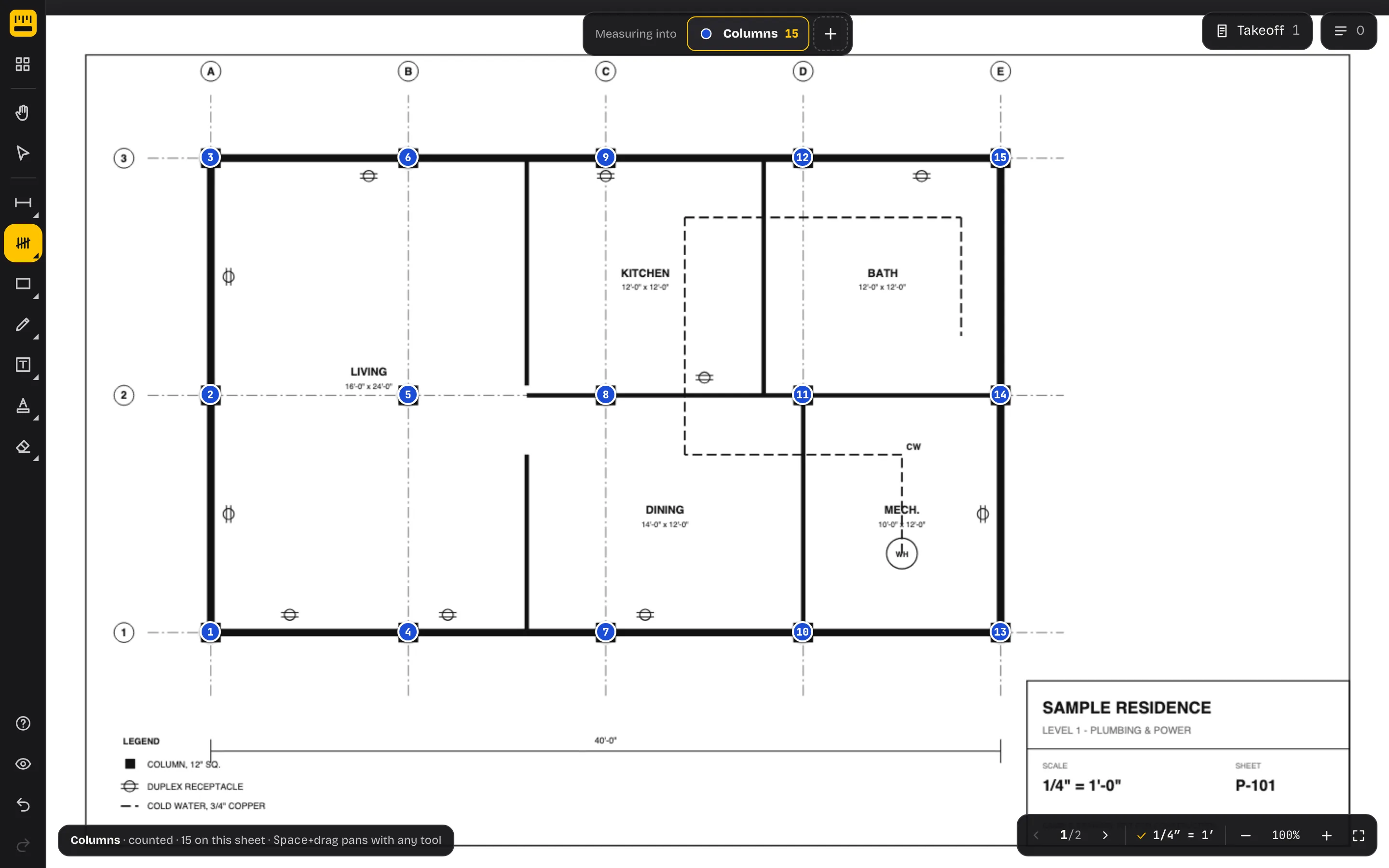
Count and Length run start at once
Pick Count or Length run and click: it starts straight away into “Count 1” or “Length 1”. Double-click its name in the bar to rename it.
Smaller fixes
Shortcuts show as ⌘ on a Mac, quick clicks with the Area tool keep every corner, and a password-protected PDF gets a clear message instead of a broken export.
Feedback from the app
Send us feedback from the app: a problem, an idea or a thank-you goes straight to the people who build PDF Measure.
Find similar (beta)
Count one symbol and PDF Measure finds the others like it on the sheet, for you to review before they’re counted.
Works on drawings exported from CAD, where symbols are linework; scanned sheets get a message.
Shapes you can resize and rotate
Rectangles, ellipses and text boxes resize by their handles, rectangles and ellipses rotate, and you can type a shape’s size at scale.
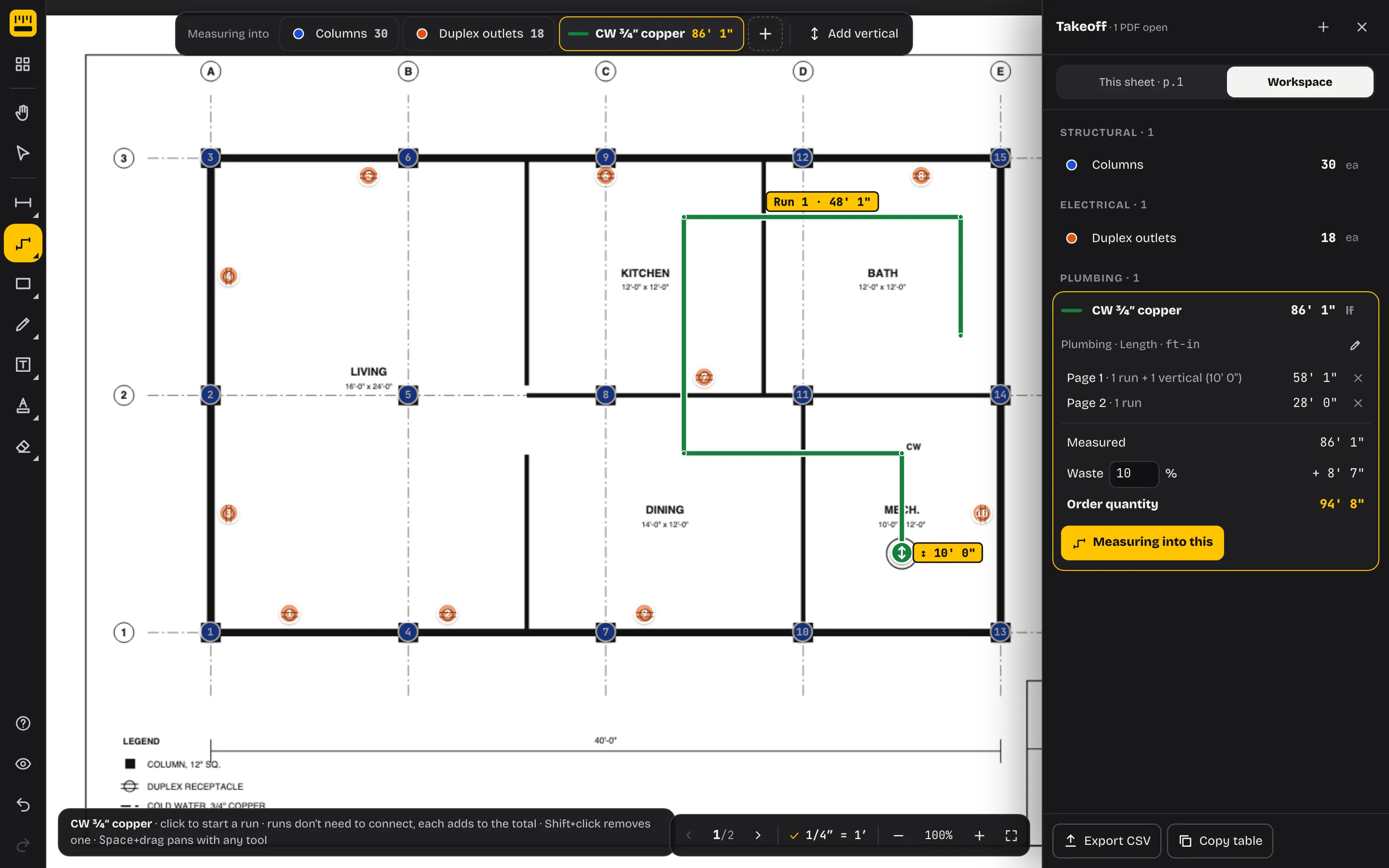
Quantities and takeoff
Count items, measure length runs and areas into named quantities, with totals per sheet and for the whole set, waste, and a CSV export.
Metric plans
A metric switch: 1:50 and 1:100 scales, lengths in metres and centimetres, areas in m², and calibration in m, cm or mm.
A new workspace, on every screen
The tools moved to a rail on the left with everything else floating over the sheet, and there are layouts for tablets and phones.
Press ? for every shortcut.