Guide
How to count items and quantities on a PDF plan
A takeoff starts with counting: how many columns, how many outlets, how many feet of ¾″ copper. This guide shows how to count symbols and total length runs on a PDF plan with the free browser tool at pdfmeasure.com, across every sheet in the set, then add waste and export the quantities to a spreadsheet. Nothing to install, and the drawings never leave your computer.
What you can count and total
The takeoff tools measure into quantities: named items whose measurements add up wherever they are on the drawings.
- Counts of anything drawn as a symbol: columns, doors, windows, receptacles, light fixtures, sprinkler heads, floor drains, plumbing fixtures.
- Length runs for anything that follows a route: pipe, conduit, duct, baseboard, fence, curb. Runs don't need to connect, and risers and drops can be typed in.
- Areas for tile, carpet, drywall or slab, traced with the Area tool into a quantity.
Step 1: Open the set and set the scale
Drop the PDF on pdfmeasure.com, or choose it from your files. A multi-page drawing set opens as one document, and you can open several PDFs at once, such as the set and its addendum: the takeoff totals every PDF you have open.
Counting doesn't need a scale, but runs and areas do. Pick the scale printed on the sheet from the scale readout at the bottom right, or calibrate from a dimension you know. If you're not sure which scale the sheet uses, our guide on finding the scale of a PDF plan covers it, and how to measure a PDF plan covers the basics of the measuring tools.
Step 2: Create a quantity
Choose Count from the Takeoff group on the rail, or press Q. For runs, choose Length run or press Shift M. The first time, the New quantity dialog opens:
- Name the item the way it reads on your estimate, like “Duplex outlets” or “CW ¾″ copper”. Common names are suggested as you type.
- Measures is Count, Length or Area, with the unit: feet and inches, decimal feet or metres for lengths, square feet or square metres for areas.
- Group sorts the takeoff by trade or phase: Structural, Electrical, Plumbing, Phase 2.
- Look gives the item a colour and a marker shape or line style, so you can tell items apart on the sheet, even printed in black and white.
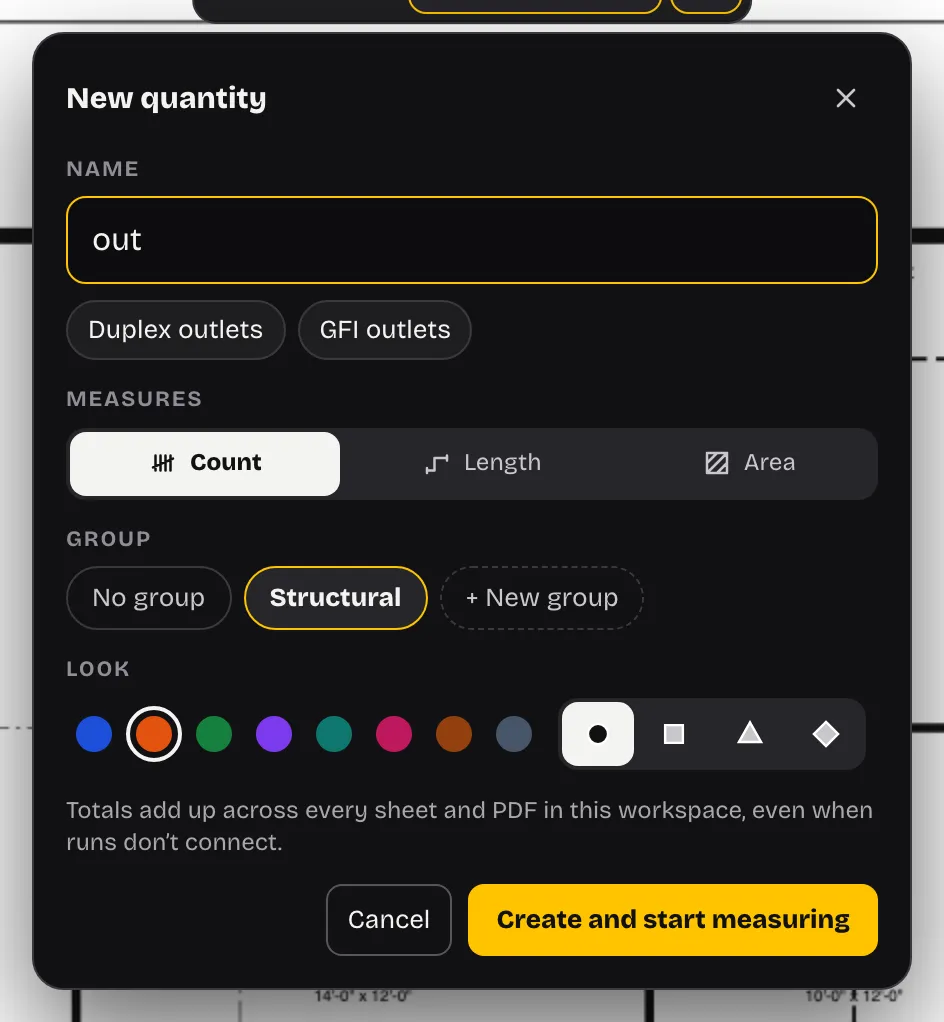
Click Create and start measuring. The quantities bar at the top of the drawing shows every item with its running total; the highlighted one is where your clicks go. Click another item, or press 1 to 9, to switch.
Step 3: Count the symbols
Click each symbol. A numbered marker in the item's colour lands on it, and the total in the bar goes up. Work through the sheet in a pattern, gridline by gridline or room by room, so nothing is skipped.
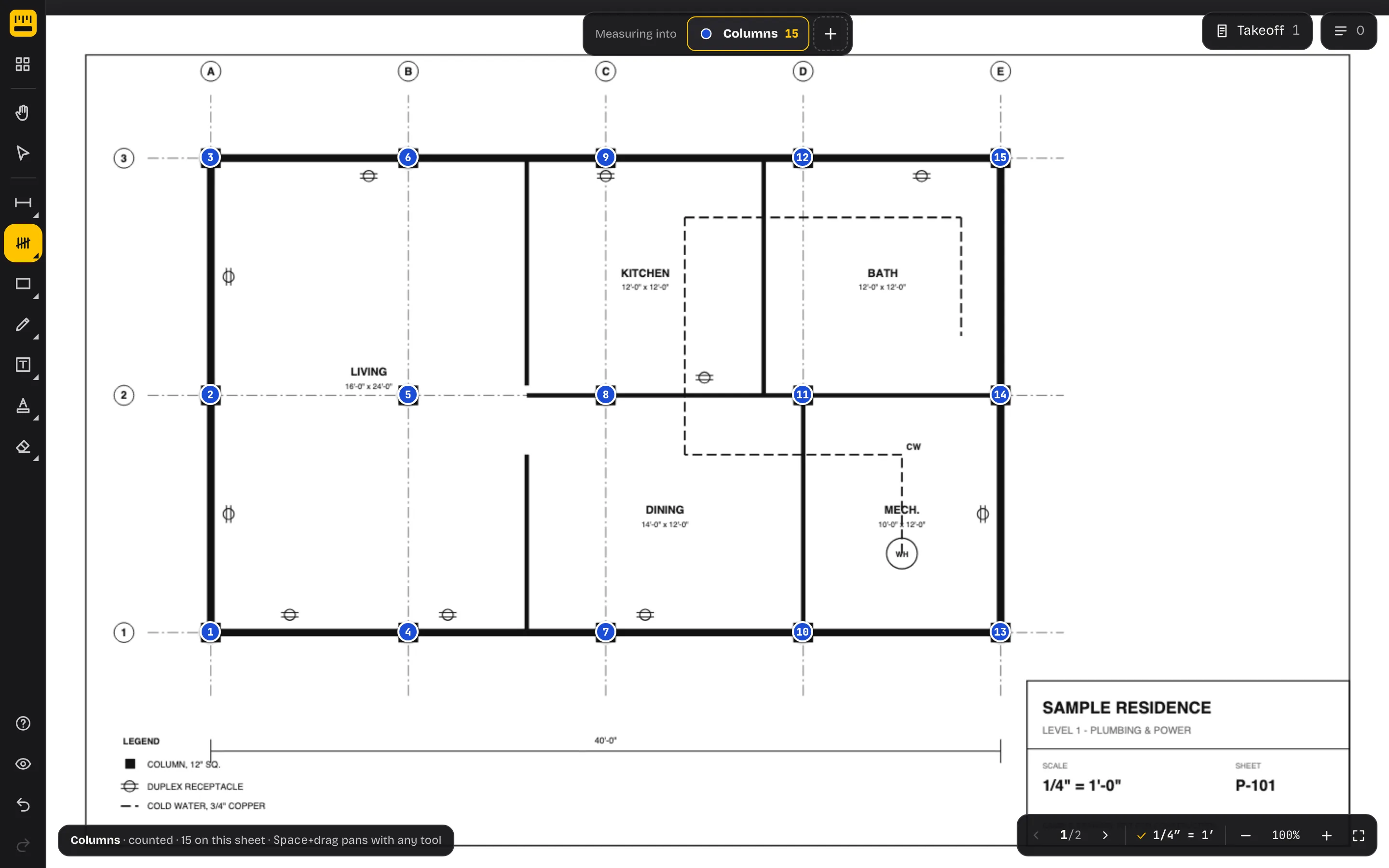
- Counted twice? A click right next to a symbol you've already counted adds nothing, and the hint line tells you it's already counted.
- Wrong symbol? Click the marker to remove it. The others renumber, and Ctrl Z puts it back.
- Look-alikes. Give each symbol on the legend its own quantity: GFI and duplex receptacles look alike but price differently.
Step 4: Count across sheets
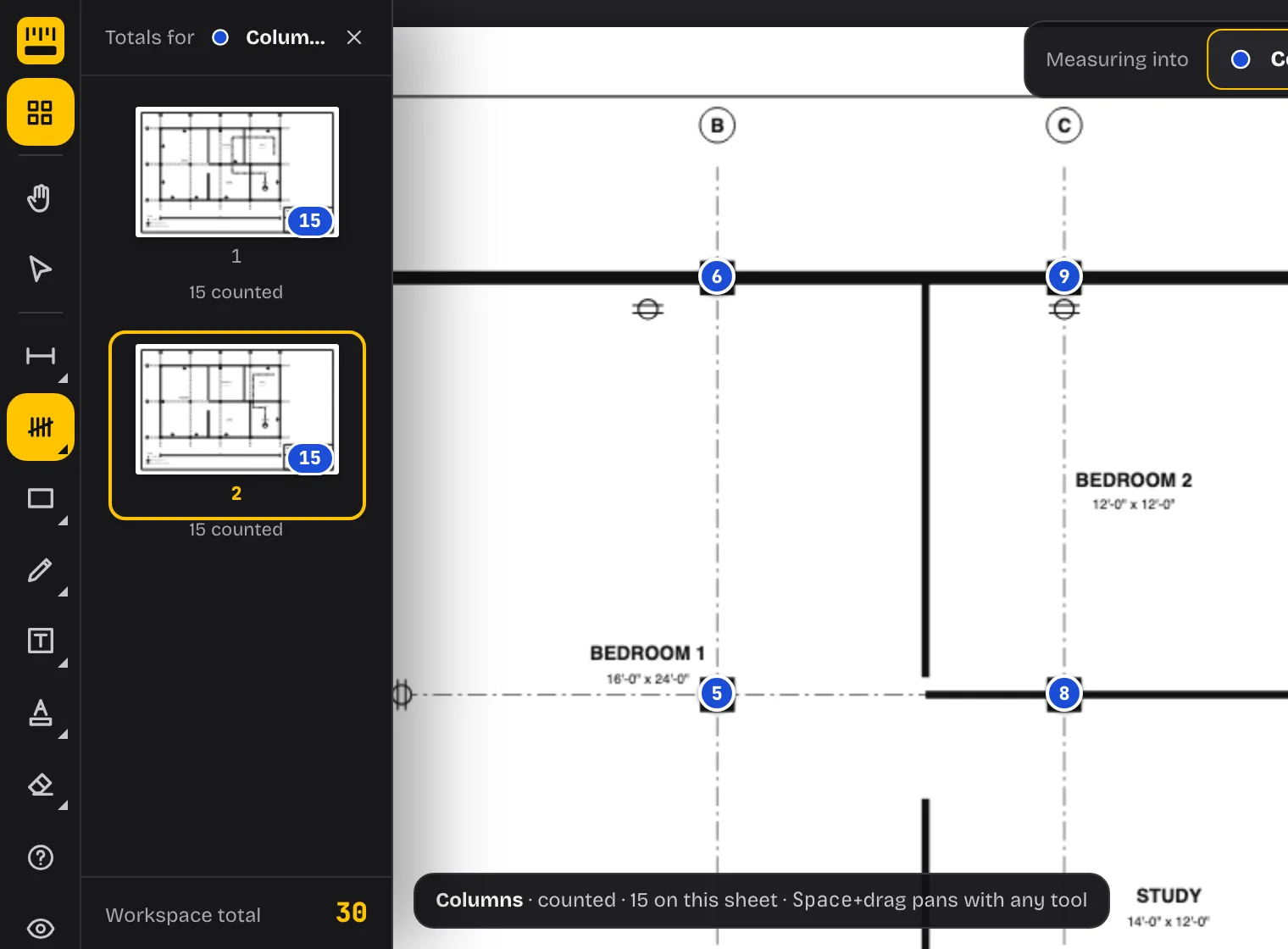
Move to the next sheet with the page arrows or the thumbnails (Ctrl B). The quantity you're counting stays selected, and the total keeps adding up. While you count, the thumbnails show each sheet's count for that item, so a sheet you haven't done yet stands out with a dash.
Step 5: Measure length runs
Pick a length quantity, then click along the route: each click adds a corner. Double-click or press Enter to finish the run, and Backspace takes back the last point. While you draw, the pill by the cursor shows this run and the item's new total.
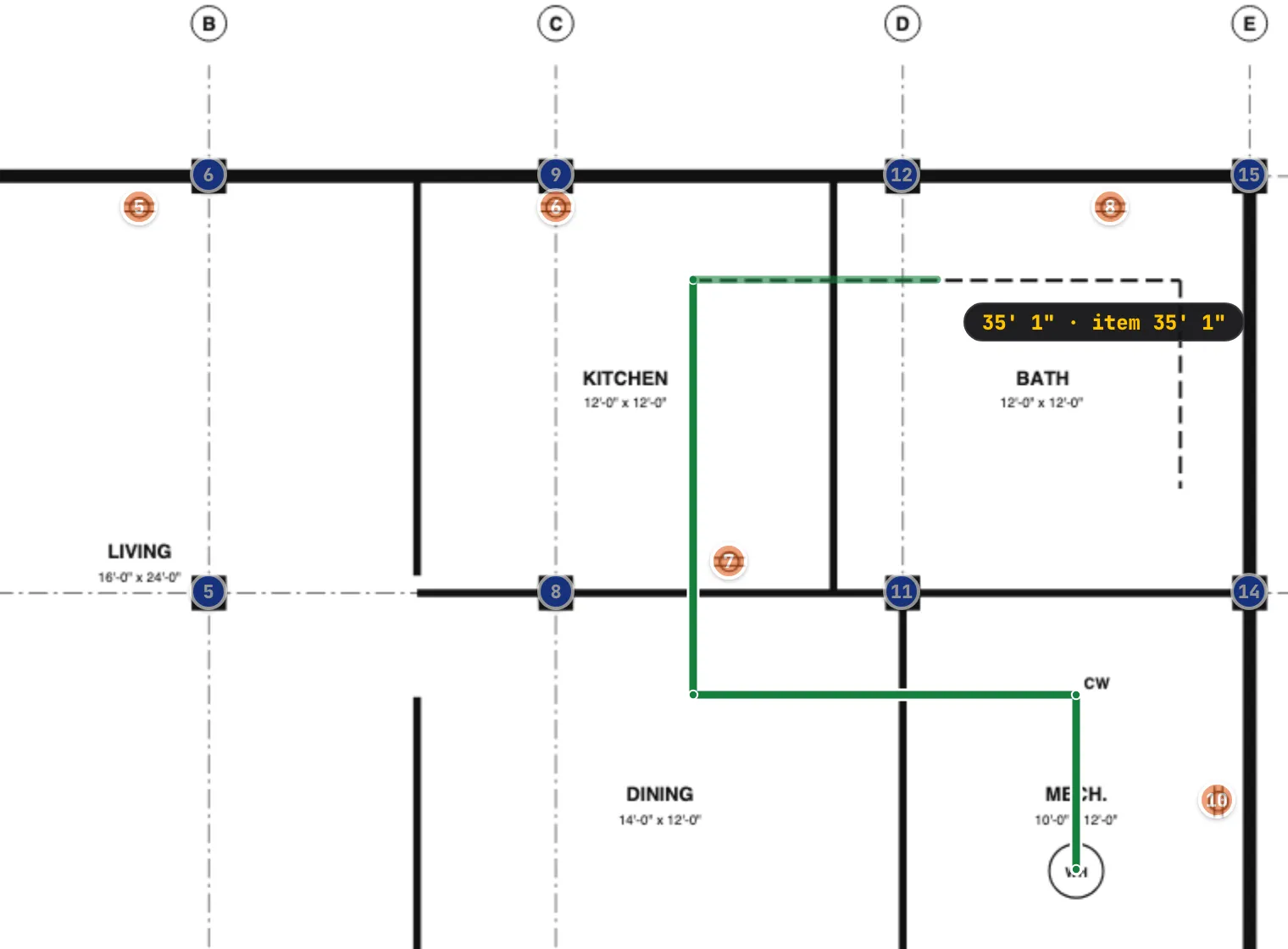
- Runs don't need to connect. Draw each branch as its own run; they all add to the same total.
- Risers and drops don't show in plan view. Click Add vertical in the bar, type the length, and click where the pipe rises. It counts toward the total and is listed separately.
- Mixed scales. Each run keeps the scale it was drawn at, so on a sheet with a plan at 1/4″ and a detail at 1″, set the scale before tracing each drawing and both stay right.
Step 6: Review the takeoff and export it
Click Takeoff at the top right. Every quantity is listed under its group, with its total for the current sheet or the whole workspace. Open one to see where its measurements are, sheet by sheet, and click a sheet to go to it. The ✕ beside a sheet clears that item from it, after a second click to confirm.
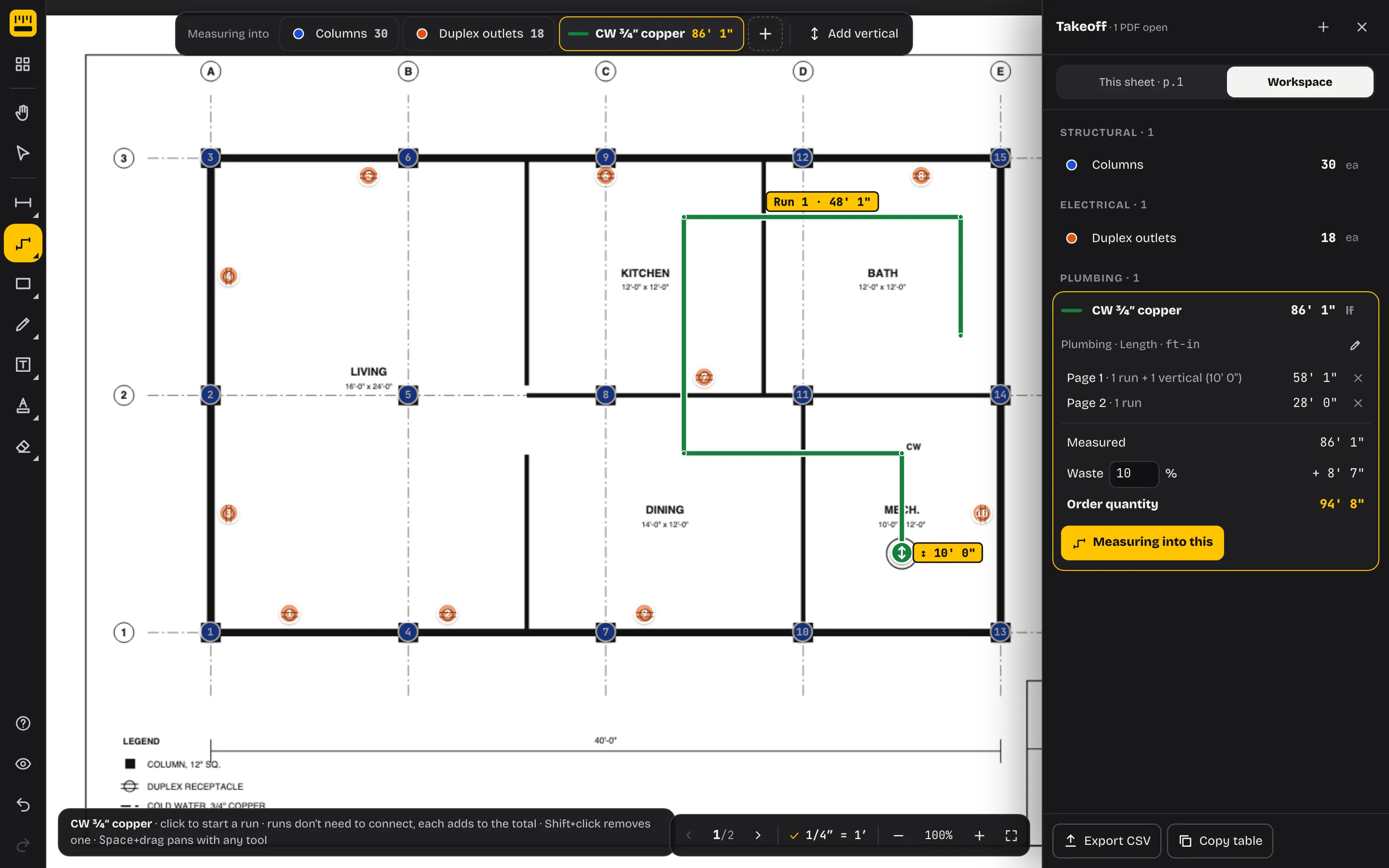
Waste. Lengths and areas start with 10% waste, which you can change per item; the takeoff shows the order quantity with it added. Counts round up to whole items.
Export. Export CSV saves one row per item per sheet, with a total row for each item that includes the waste and order quantity, ready for Excel, Numbers or Google Sheets. Copy table puts the same table on the clipboard to paste straight into a spreadsheet.
Everything saves in your browser as you go, so the takeoff is still there when you reopen the PDF tomorrow.
Tips for an accurate count
- Start from the legend. Make a quantity for every symbol in the legend before you count, so each one gets its own colour and nothing gets lumped together.
- Count one item at a time across the whole set, rather than everything on one sheet. It's faster, and the thumbnail badges show which sheets are done.
- Check against schedules. If the set has a door, fixture or panel schedule, its totals are a quick check on your count.
PDF Measure doesn't recognise symbols automatically or price your quantities: you click each item, and the costing happens in your spreadsheet.