Guide
Measure tool greyed out in Adobe Reader: why, and the fix
Current Adobe Acrobat Reader measures most PDFs for free. The Measuring tool is greyed out when the file’s security settings don’t allow commenting, which is common on sealed or locked drawing sets. Check under File › Properties › Security, then ask the sender for an unlocked copy or measure the file in a tool that reads the drawing itself.
Why the Measuring tool is greyed out
We tested this in Acrobat Reader on a Mac in November 2026. On ordinary PDFs, including our sample plan, All tools › Measure objects › Measuring tool worked for lengths, perimeters and areas. Then we opened a copy of the same plan protected with a permissions password that allowed printing only, with no commenting and no changes. The Measuring tool was greyed out. The Object data tool and the Geospatial location tool next to it stayed available.
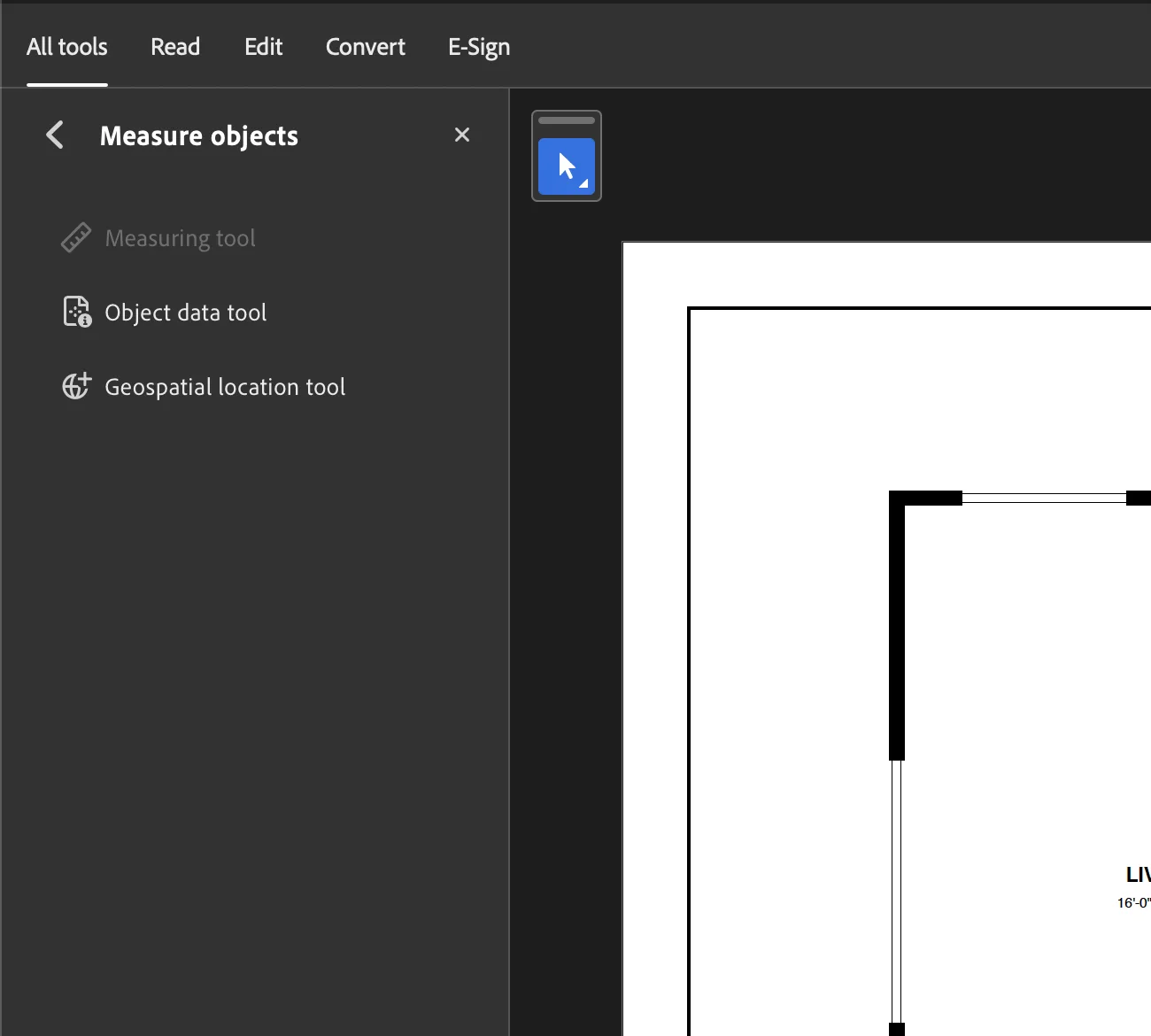
So the switch isn’t in your copy of Reader. It is the PDF’s security: Reader treats measurements as comments, and a file that forbids comments forbids measuring too. That’s why the same files usually refuse both.
Adobe’s help page still says the measuring tools “are available to Acrobat Reader users only if the PDF creator enables measuring functionality”. Older versions of Reader did need the sender to enable it. In our test, though, a plain PDF with no special settings measured fine, and only the locked one didn’t. If you’re on an old version of Reader, update it before anything else.
Drawings from engineers and architects are often locked on purpose. A sealed sheet may be digitally signed, or protected so nobody can alter it. That is a good reason for a sender to be careful, and worth knowing before you ask.
How to check whether a PDF is locked
- Open the PDF in the Acrobat Reader app, not in a browser.
- Open the document properties: File › Properties, or Ctrl + D on Windows and ⌘ + D on a Mac.
- Choose the Security tab and read the Document Restrictions Summary.
| What the Security tab shows | What it means for measuring in Reader |
|---|---|
| Commenting: Not Allowed | The Measuring tool is greyed out. Only someone with the file’s permissions password can change that. |
| Commenting: Allowed, or Security Method: No Security | Security isn’t the block. Check the other cases below, and make sure you’re in the Reader app and on a current version. |
Other ways the problem shows up
Forum threads about this run to dozens of pages. Most of them are one of these five cases.
| What you see | Usual cause | What to do |
|---|---|---|
| Measuring tool greyed out under Measure objects | The file’s security doesn’t allow commenting. | Check the Security tab (below). Ask the sender for an unlocked copy, or measure it in a tool that reads the drawing. |
| No Measure tool anywhere | You’re probably in a browser’s PDF viewer, or the tool is tucked away in Acrobat’s newer layout. | Download the PDF and open it in the Reader app. Look under All tools › Measure objects. |
| It measures, but you can’t change the scale | Reader is using a scale stored in the PDF. | In Preferences, under Measuring (2D), turn off “Use scale and units from document (when present)”. |
| It measures ground distance in miles or kilometres, not plan feet | The PDF is a geospatial map (common in civil and survey sets). | That’s expected: Acrobat measures real-world ground distance from the map data. |
| The tool works on the sheet but not on a 3D model | 3D models have their own measuring tool. | Click the model to activate it, then use the 3D measurement tool on the 3D toolbar. |
A few details on those. Planning departments that tell residents to measure in Reader say the same thing about browsers: open the plan in the Reader app, not in Edge. The scale fix comes from a long Adobe Community thread where the option vanished after updates; switching off the new Acrobat interface also worked for some people. For maps, Adobe explains that on a geospatial PDF its tools read the geographic data and measure ground distance instead of page distance. And 3D models use the separate 3D measurement tool.
How to measure a locked PDF
| Option | Cost | Measures a locked file? | Best when |
|---|---|---|---|
| Ask the sender for an unlocked copy | Free for you | Yes, once they send it | You’ll keep working in Reader on this project |
| A browser tool such as PDF Measure | Free | Yes: it reads the drawing, not the permissions | You need the number now, on any device |
| Acrobat Pro | Paid subscription | Only with the file’s permissions password | You measure in Acrobat every week anyway |
| Foxit PDF Reader | Free | Probably not (its manual has the same caveat) | You want a second free desktop reader |
1. Ask the sender for an unlocked copy
This is the fix if you want to stay in Reader. Whoever set the permissions password can remove it, or allow commenting, in the PDF’s security settings. You can paste them this:
2. Measure it in your browser
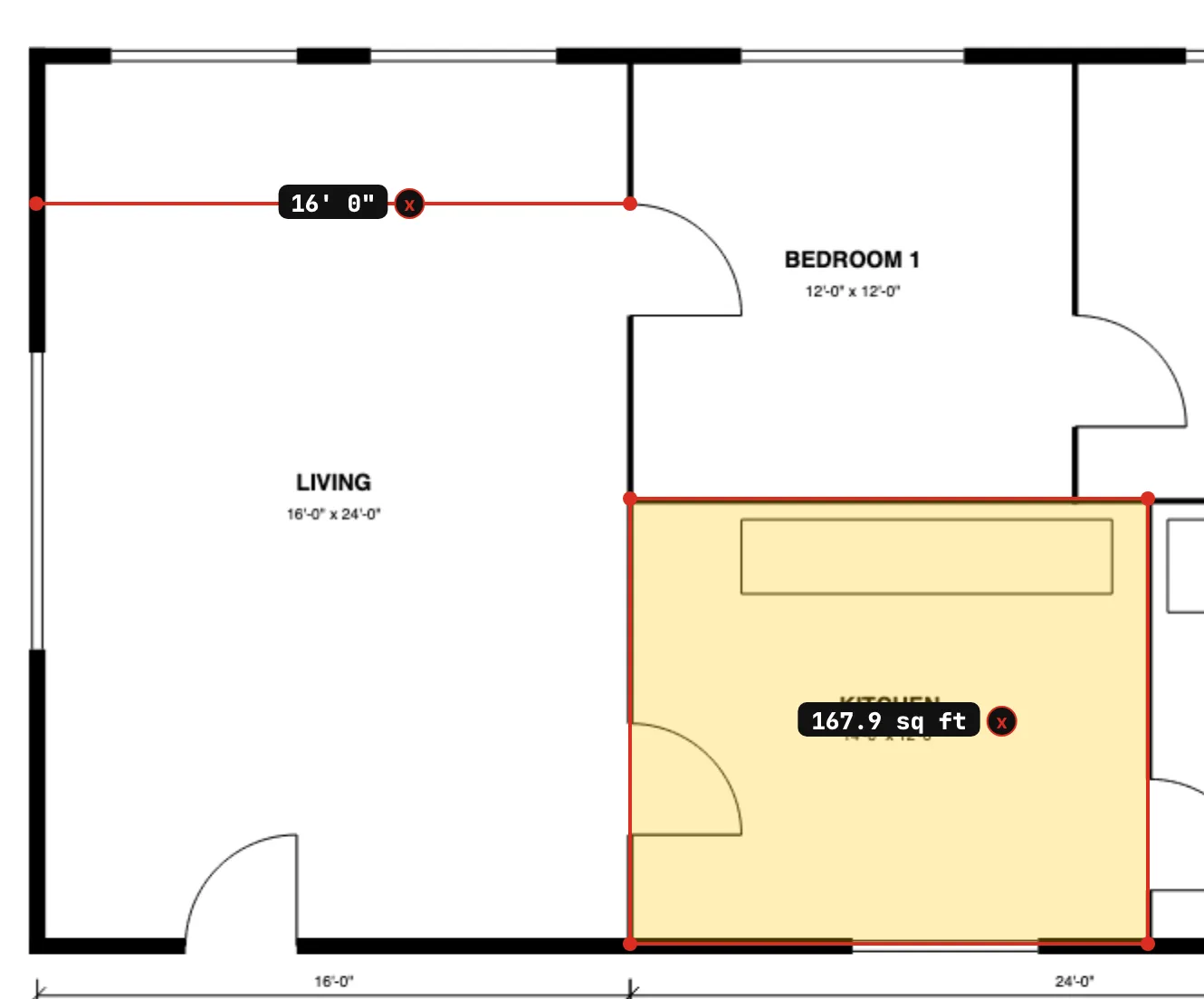
PDF Measure reads the drawing itself: the lines and text on the page. A permissions password doesn’t stop it from measuring. We tested this with the same print-only copy that Reader refused. It opened as normal, and with the scale set to 1/4″ = 1′-0″ the living room read 16′-0″ wall to wall and the kitchen 167.9 ft².
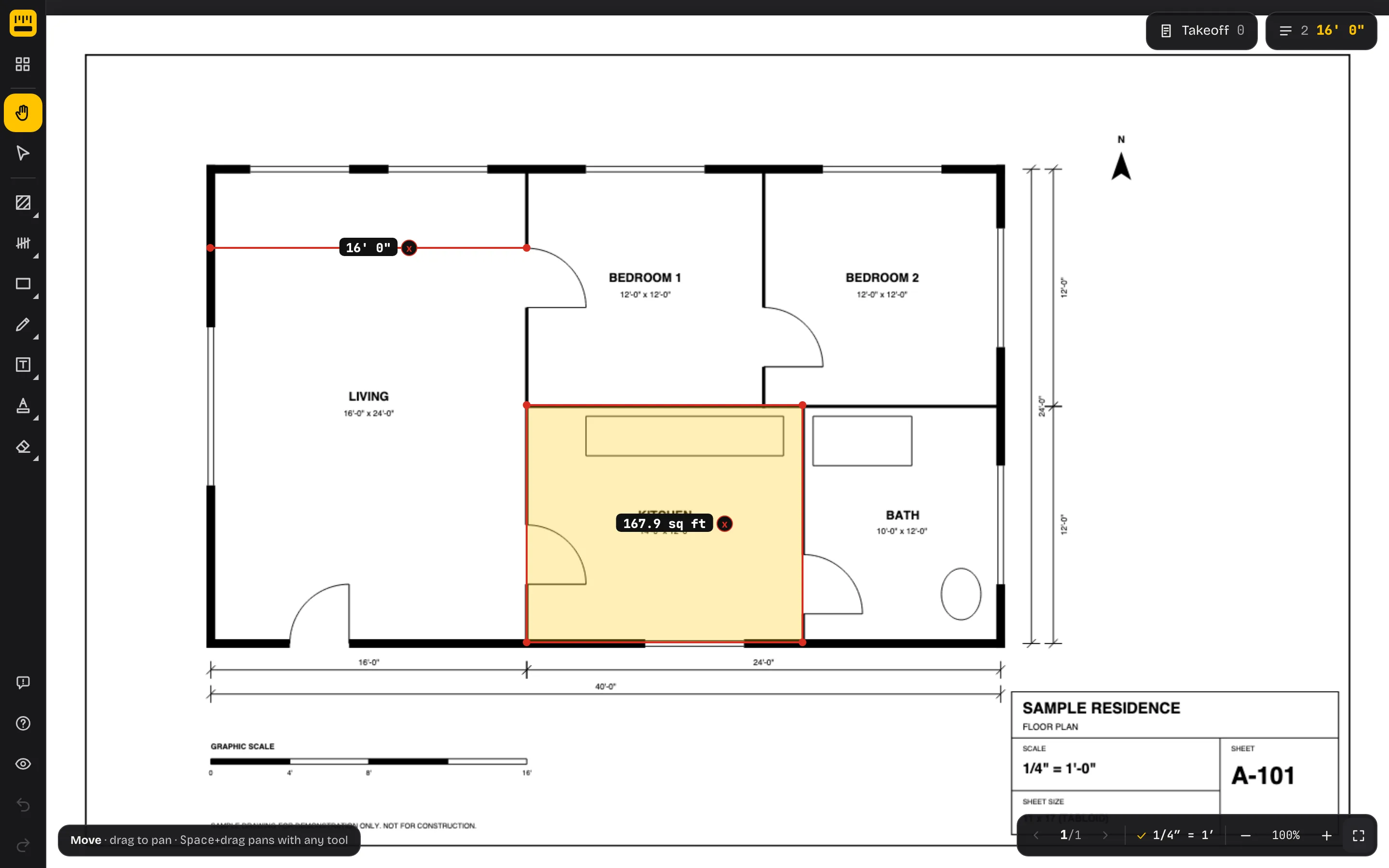
The file opens on your device and is never uploaded, so a client’s locked drawing stays with you. Two limits to know. A PDF that needs a password just to open it won’t open in PDF Measure yet. And “Export PDF with markup” won’t write a marked-up copy of a password-protected file, since its security forbids changes; your measurements and totals are still there to read and copy, and the takeoff exports as CSV. The guide to measuring a PDF walks through every tool.
3. Acrobat Pro, if you have the password
Acrobat Pro measures with distance, perimeter and area and a scale you set per page, and it’s a paid subscription. It doesn’t get round a lock, though: a file whose permissions password forbids commenting needs that password in Pro too. Pro is worth it if you measure in Acrobat every week anyway. Our comparison of PDF Measure, Bluebeam Revu and Acrobat covers where each one fits.
4. Another free desktop reader
Foxit PDF Reader is free and has Distance, Perimeter and Area tools under Comment › Measure, with a calibrate option. Foxit’s own manual says the measure commands are available only if the PDF creator enables measuring, so a locked file probably won’t measure there either. We haven’t tested it.
Once you can measure: check the scale
Unlocking the tool is half the job: no tool’s numbers mean anything until the scale is right. Set the one printed in the title block, then measure a dimension printed on the sheet to confirm it. If the sheet was printed to a smaller paper size, the printed scale is wrong and you need to calibrate. Our guide to finding the scale of a PDF plan shows how, and the scale calculator converts any drawing length.
Questions people ask
Is the Measure tool free in Adobe Acrobat Reader?
Yes. In our test, current Acrobat Reader on a Mac measured lengths, perimeters and areas on ordinary PDFs for free. It greys the Measuring tool out on files whose security doesn’t allow commenting.
Can I turn on measuring myself in Adobe Reader?
Not on a locked file. The restriction is saved in the PDF and only someone with its permissions password can lift it, usually whoever sent the drawing. Acrobat Pro asks for the same password.
Why can I measure some PDFs in Reader but not others?
The restriction belongs to each file, not to your copy of Reader. A PDF with no security, or one that allows commenting, measures; one whose security forbids commenting does not.
Why is there no Measure tool when the PDF opens in Chrome or Edge?
The PDF viewers built into Chrome and Edge have no Measure tool, and people report it missing when plans open in Acrobat inside the browser. Download the file and open it in the Acrobat Reader app, or use a browser-based measuring tool.
Does measuring a PDF in another app change the file?
No. Measuring in PDF Measure draws on top of the page in your browser; the original file is not modified or uploaded. You only get a new file if you choose to export one.